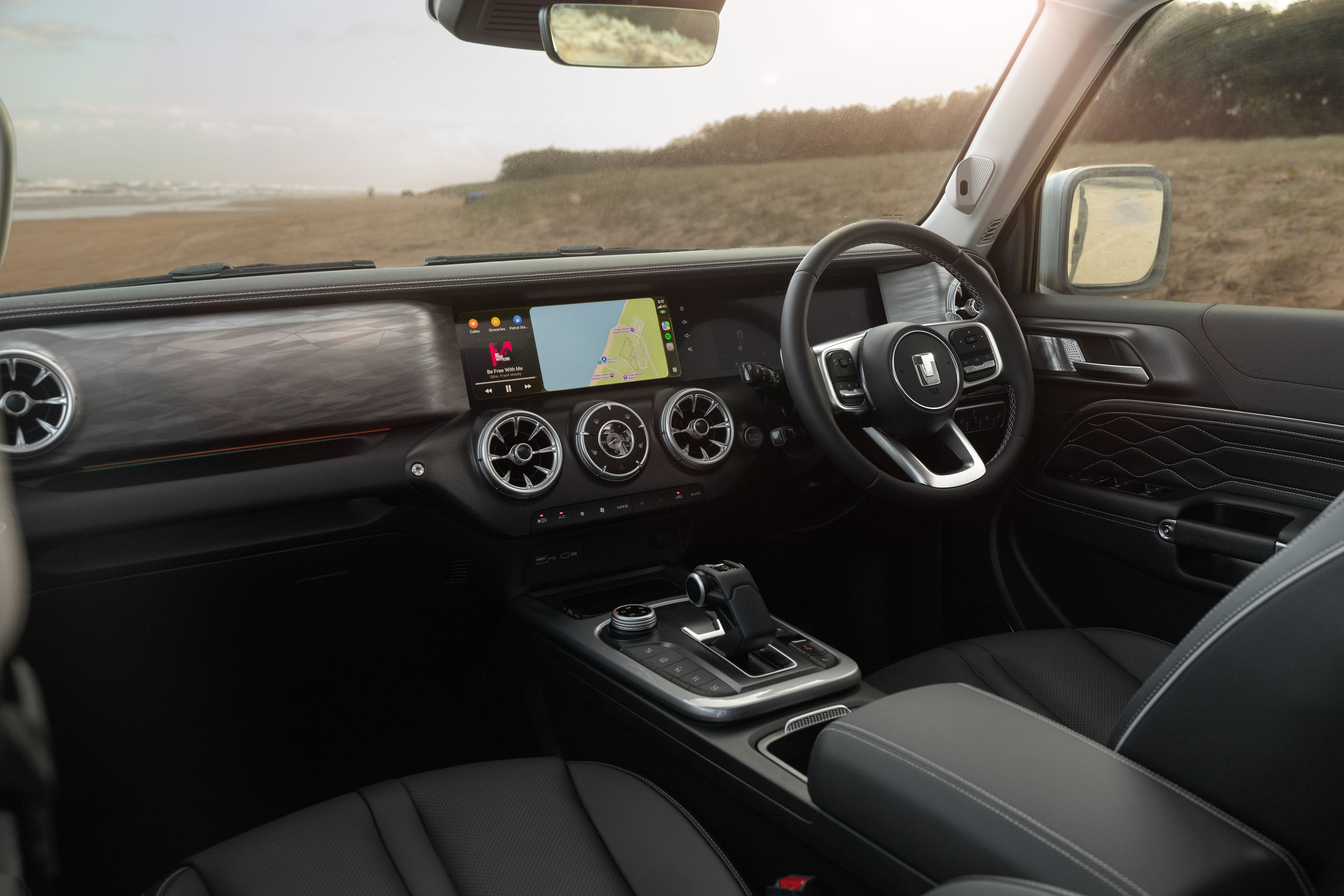
How to update your TANK 300 PHEV
Follow these steps in your vehicle, using the GWM ANZ App to log in.
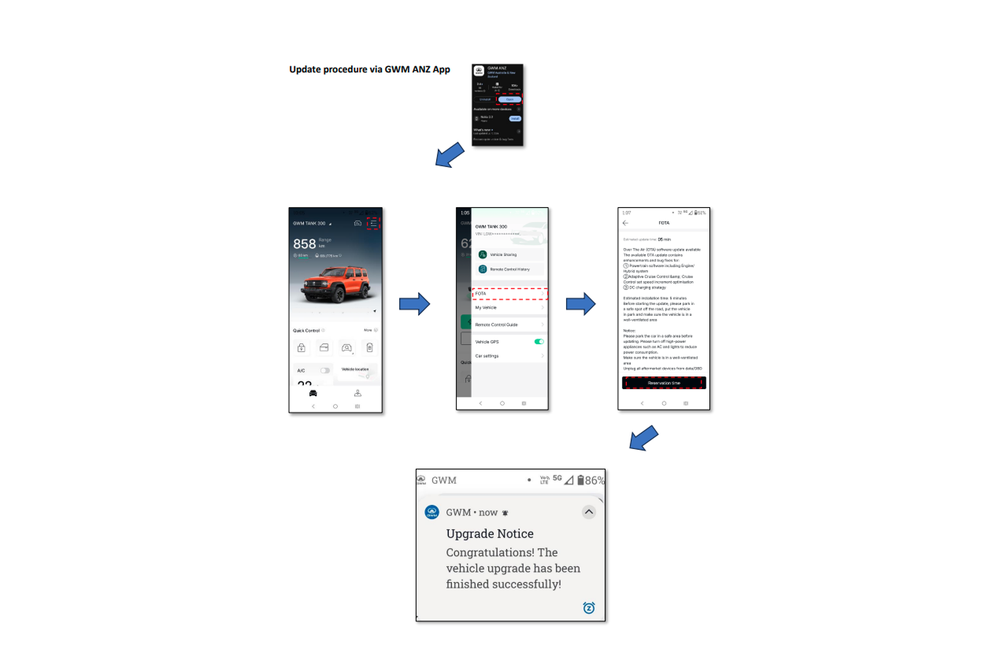
In vehicle - OTA Update Procedure
)
)
Step 1
Power on the vehicle and wait for the infotainment screen to finish starting up.
)
)
Step 2
Select the APP button, then select Settings.
)
)
Step 3
Select System.
)
)
Step 4
Select System Update.
)
)
Step 5
If you are not already logged in, select Login now.
)
)
Step 6
On your mobile phone, open the GWM ANZ App. Select the profile icon, then the QR code scanner in the top-left corner. Scan the QR code shown on your vehicle's screen.
)
)
Step 7
Once you are logged into the vehicle, select Agree and continue. gs.
)
)
Step 8
The system update will begin downloading.
)
)
Step 9
Select Accept, then Update Now. For more detail about the update, select Learn More.
)
)
Step 10
A notification will start a countdown. Select Confirm when it appears.
If your vehicle does not meet the conditions, you can download the software now and install it later. The high voltage battery must be above 30% and the charging cable must be disconnected.
)
)
Step 11
Once the conditions are met, the vehicle will move to the update screen. Follow the on-screen prompts.
The update takes approximately 5 minutes. During this time the screen may go blank and the progress bar may pause at 100%. Please wait until the screen restarts. The front wipers may sweep once the update finishes.
)
)
Step 12
A message will confirm the update has installed successfully. Select OK.
)
)
Step 13
That's it. You can now power off the vehicle or resume normal driving.
TANK 300 PHEV